Learn the basics of how blockbuster movies put their characters into fantasy worlds. Using Adobe Premier Pro and a green screen you can easily learn the essentials. In this tutorial I will show you how to creatively and effectively use one of Premier’s basic editing tools to create dramatic videos.
First you need to create a project file in Adobe Premier. Call it something you will remember and know where you put it.
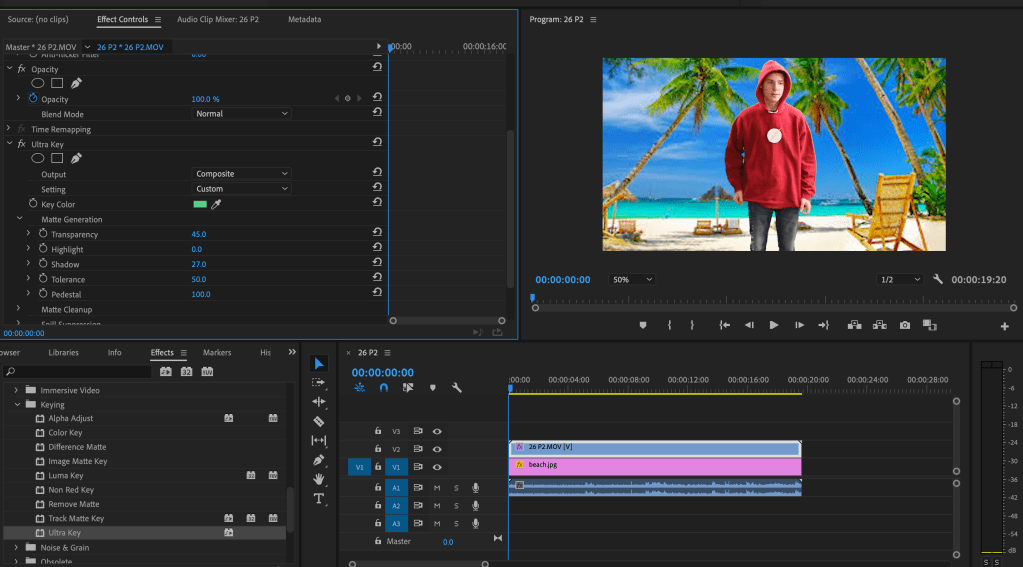
Next import the clips you plan to use. Take your clip with the green screen and the clip with the desired background and import them into the timeline section of Premier. Make sure that the clip with the green screen is above the background clip in the timeline.
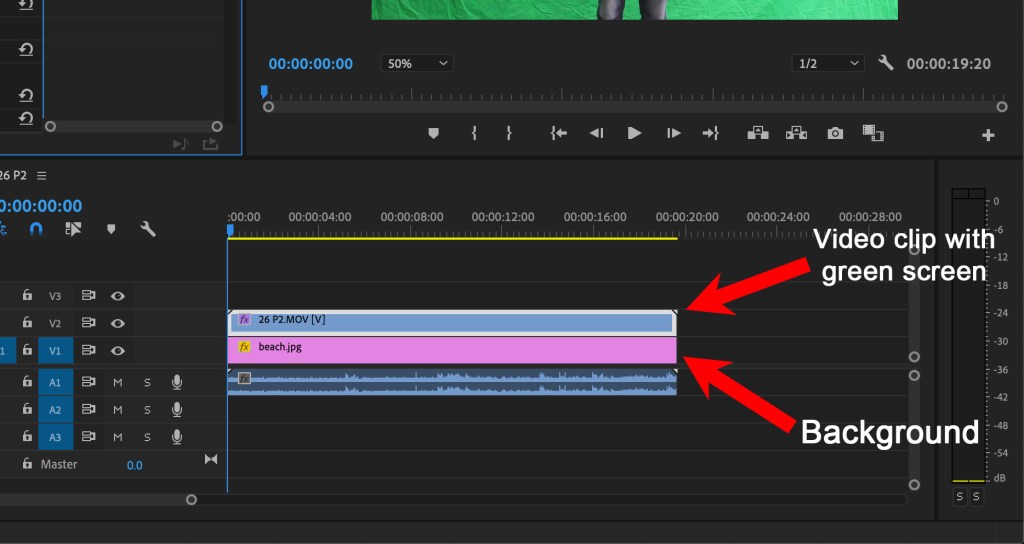
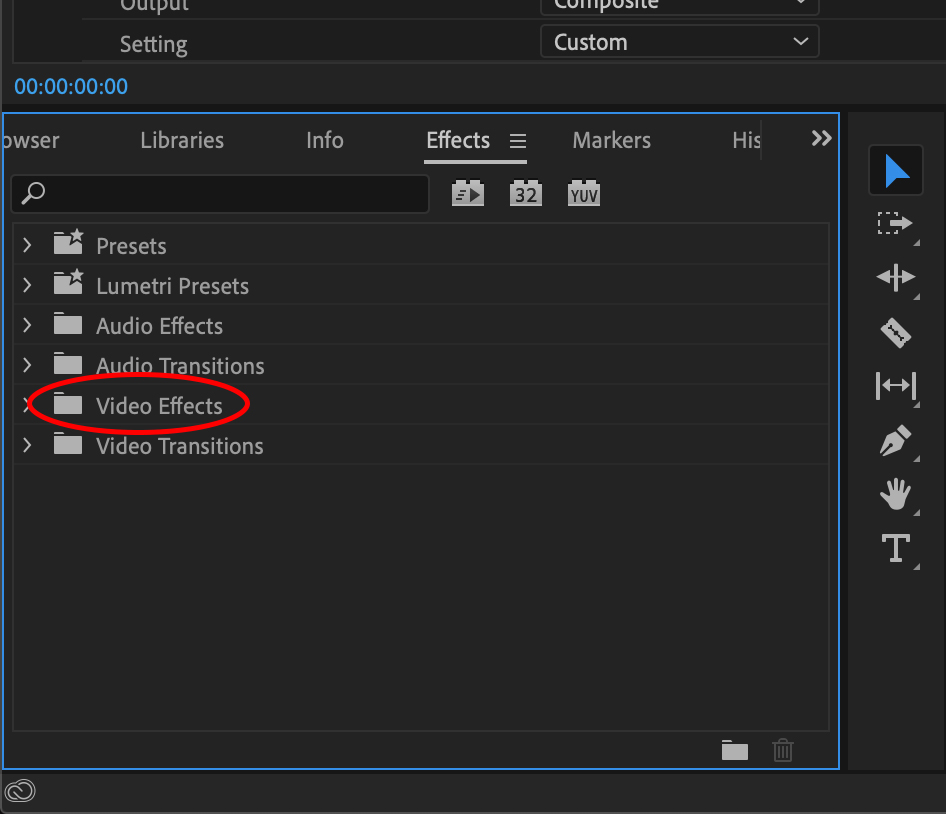
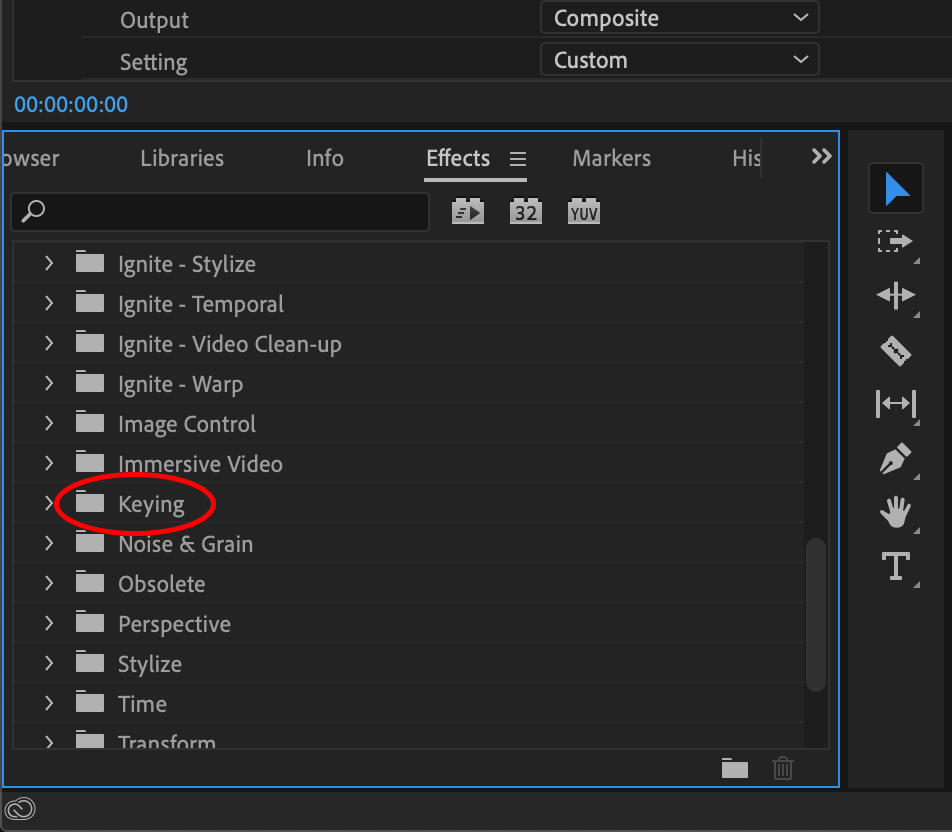
Once your clips are in the timeline you now need to remove the green from your main clip. To do this you go the “effects window”, then into “video effects” and scroll down to the “keying” folder. Now, click and drag the “ultra key” effect onto the clip containing the green screen.

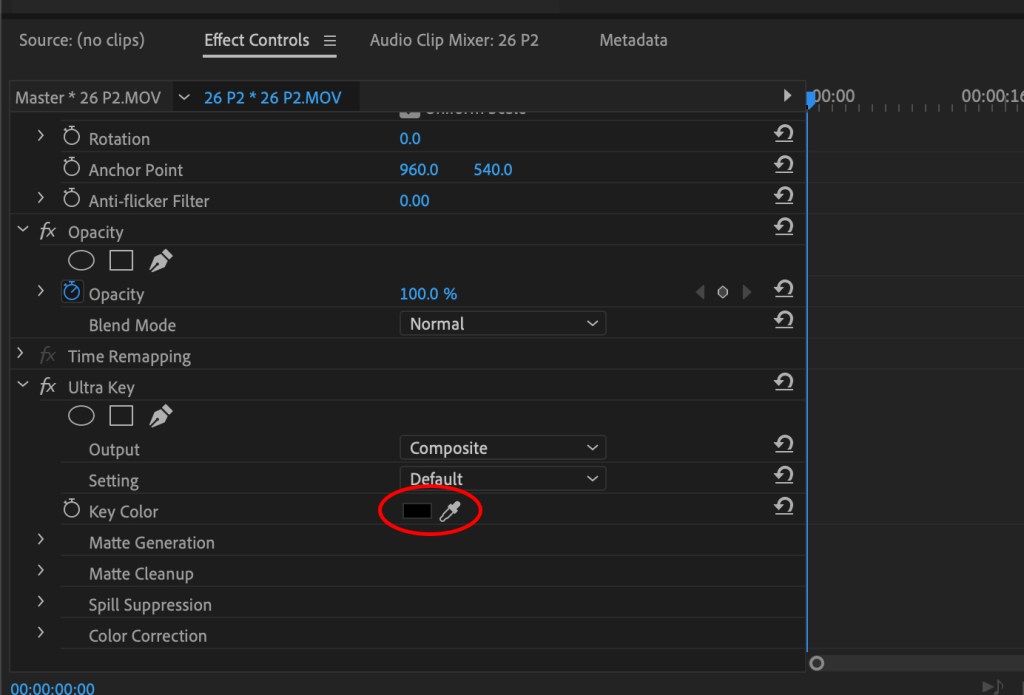
Then, go to the “Effect Controls” window and scroll down to the “Ultra Key” effect. Click the eye dropper tool next to key colour. In your clip, click on the green screen (where you click will be the colour that will be removed from your clip).
At this point, assuming you had your green screen clip above your background clip in the timeline, you should see the background has replaced the green screen in your video. If you haven’t placed your clips on top of each other, the background will be black because you removed the green colour. If you have a black background, just move that clip on top of the other in the timeline.
Save the project file and you’re done! Now you know the basics of how they do it in the movies.
 How to use a green screen in Adobe Premier Pro