Be yourself; Everyone else is already taken.
— Oscar Wilde.
This is the first post on my new blog. I’m just getting this new blog going, so stay tuned for more. Subscribe below to get notified when I post new updates.
Be yourself; Everyone else is already taken.
— Oscar Wilde.
This is the first post on my new blog. I’m just getting this new blog going, so stay tuned for more. Subscribe below to get notified when I post new updates.
Learn the basics of how blockbuster movies put their characters into fantasy worlds. Using Adobe Premier Pro and a green screen you can easily learn the essentials. In this tutorial I will show you how to creatively and effectively use one of Premier’s basic editing tools to create dramatic videos.
First you need to create a project file in Adobe Premier. Call it something you will remember and know where you put it.
Next import the clips you plan to use. Take your clip with the green screen and the clip with the desired background and import them into the timeline section of Premier. Make sure that the clip with the green screen is above the background clip in the timeline.
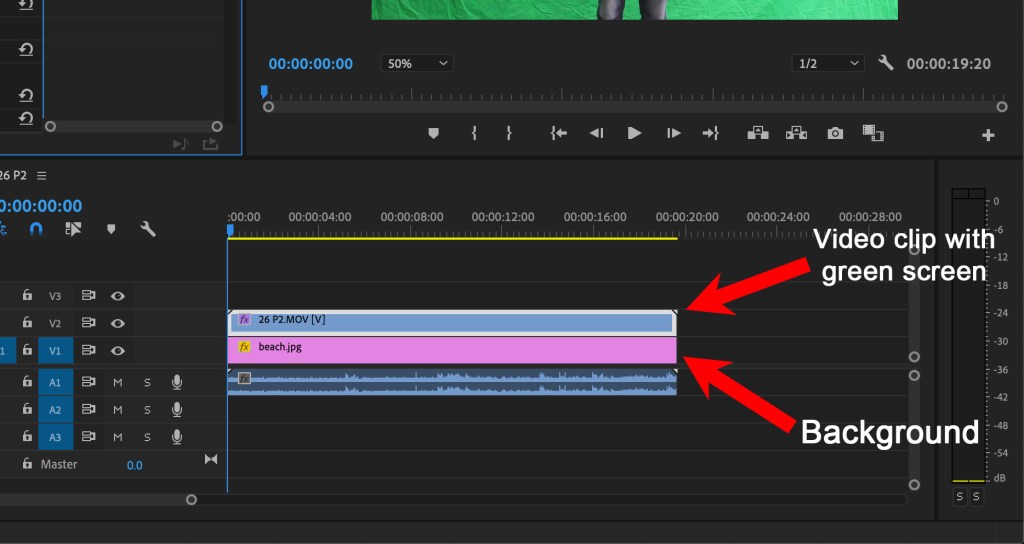
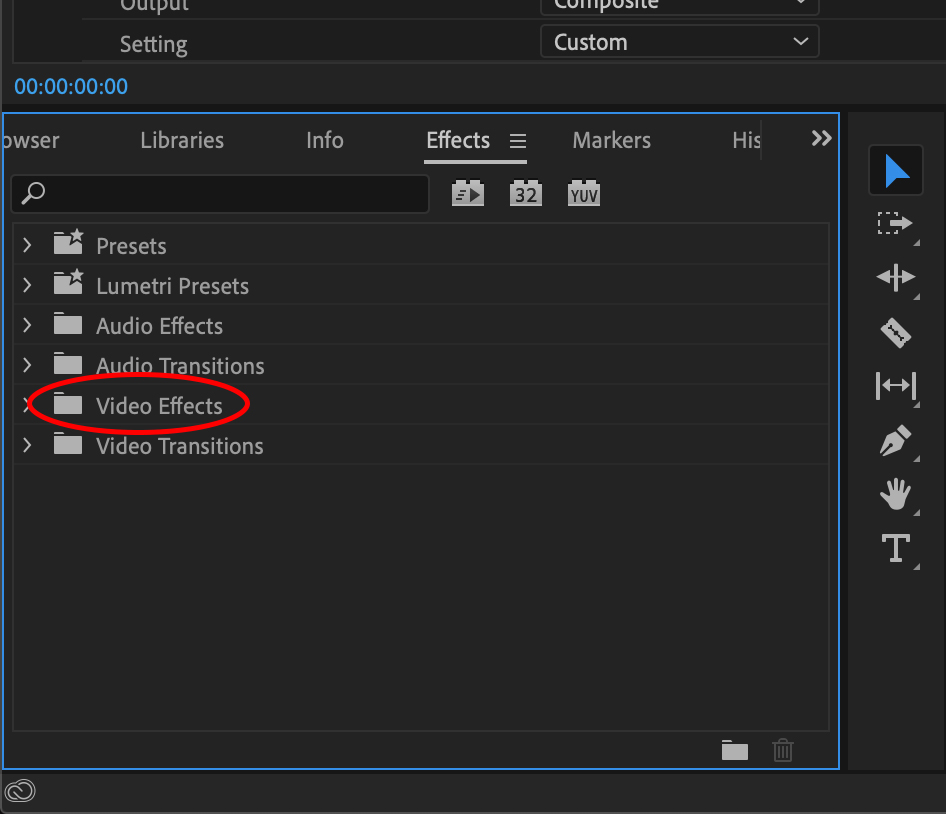
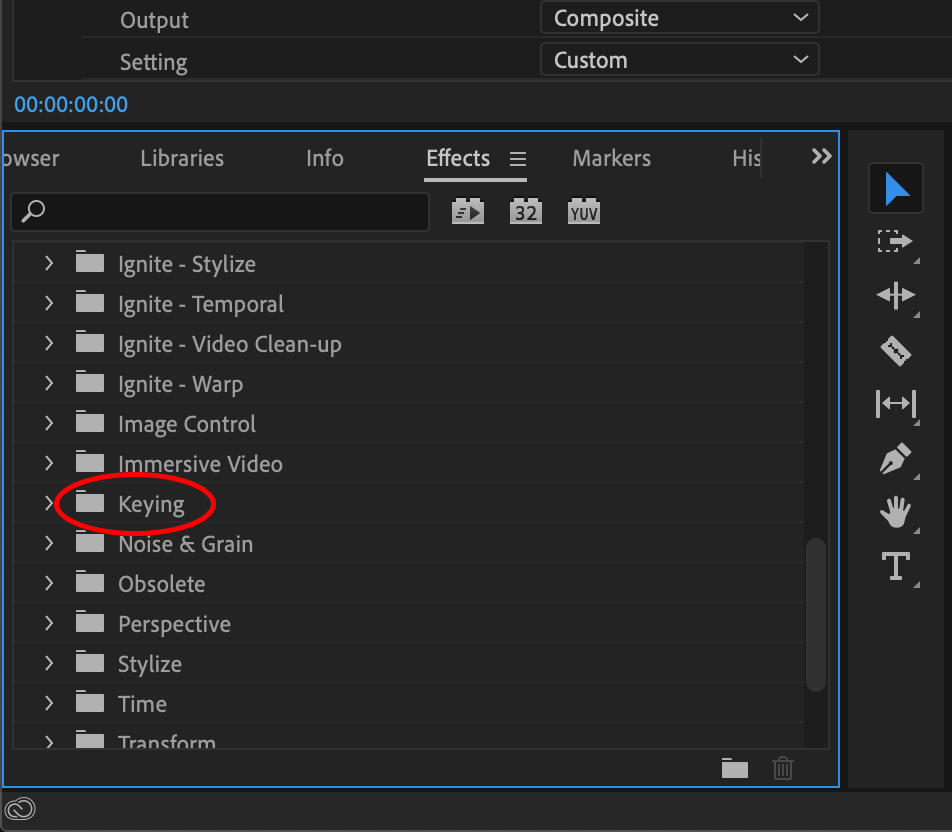
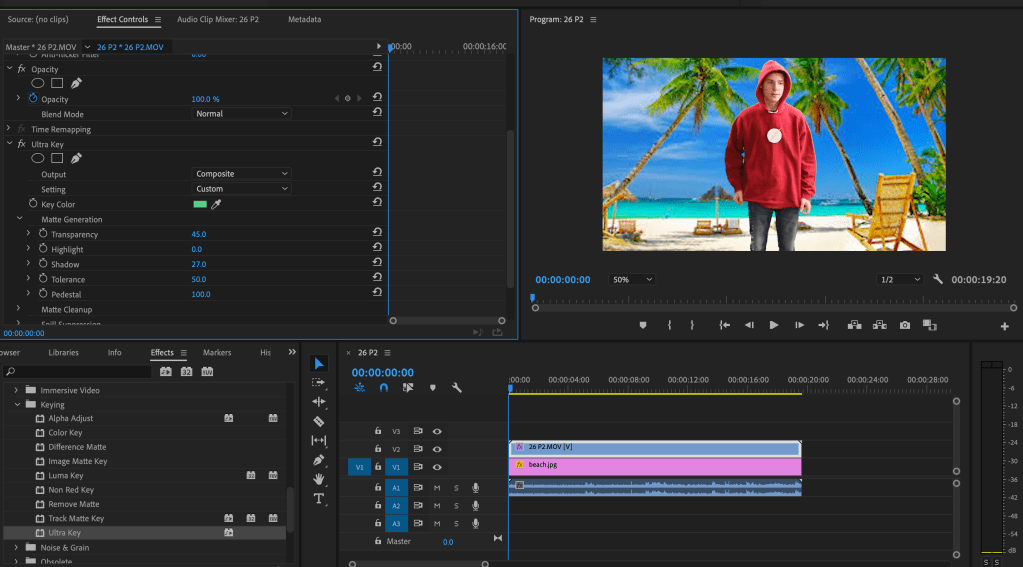
Once your clips are in the timeline you now need to remove the green from your main clip. To do this you go the “effects window”, then into “video effects” and scroll down to the “keying” folder. Now, click and drag the “ultra key” effect onto the clip containing the green screen.

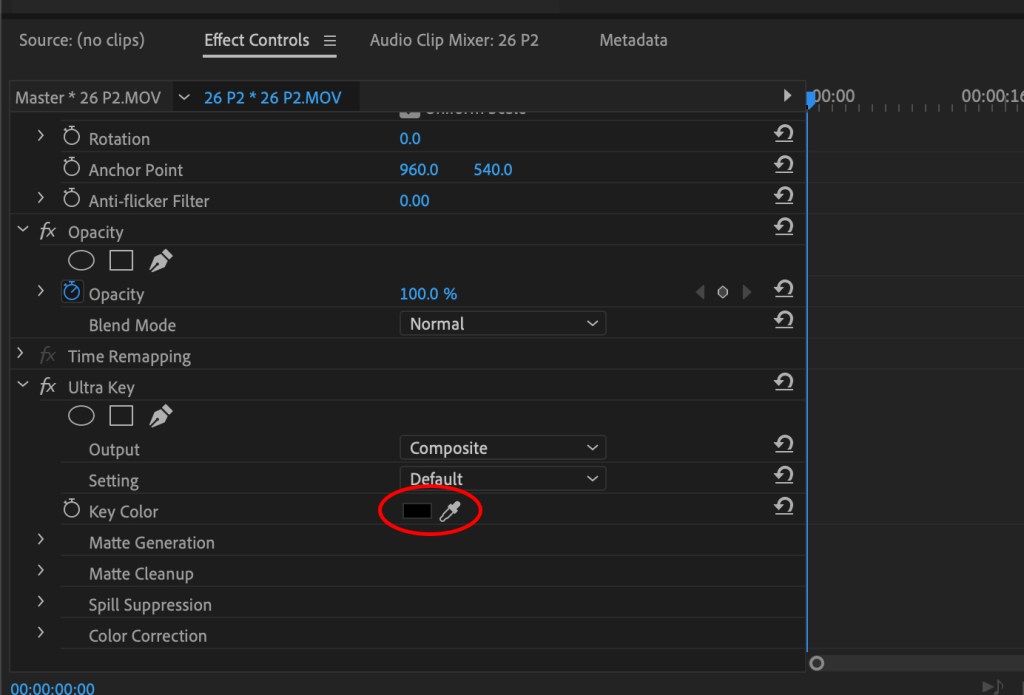
Then, go to the “Effect Controls” window and scroll down to the “Ultra Key” effect. Click the eye dropper tool next to key colour. In your clip, click on the green screen (where you click will be the colour that will be removed from your clip).
At this point, assuming you had your green screen clip above your background clip in the timeline, you should see the background has replaced the green screen in your video. If you haven’t placed your clips on top of each other, the background will be black because you removed the green colour. If you have a black background, just move that clip on top of the other in the timeline.
Save the project file and you’re done! Now you know the basics of how they do it in the movies.
This is an example post, originally published as part of Blogging University. Enroll in one of our ten programs, and start your blog right.
You’re going to publish a post today. Don’t worry about how your blog looks. Don’t worry if you haven’t given it a name yet, or you’re feeling overwhelmed. Just click the “New Post” button, and tell us why you’re here.
Why do this?
The post can be short or long, a personal intro to your life or a bloggy mission statement, a manifesto for the future or a simple outline of your the types of things you hope to publish.
To help you get started, here are a few questions:
You’re not locked into any of this; one of the wonderful things about blogs is how they constantly evolve as we learn, grow, and interact with one another — but it’s good to know where and why you started, and articulating your goals may just give you a few other post ideas.
Can’t think how to get started? Just write the first thing that pops into your head. Anne Lamott, author of a book on writing we love, says that you need to give yourself permission to write a “crappy first draft”. Anne makes a great point — just start writing, and worry about editing it later.
When you’re ready to publish, give your post three to five tags that describe your blog’s focus — writing, photography, fiction, parenting, food, cars, movies, sports, whatever. These tags will help others who care about your topics find you in the Reader. Make sure one of the tags is “zerotohero,” so other new bloggers can find you, too.

 How to use a green screen in Adobe Premier Pro